
How to Convert YouTube to MP4 on iPhone and Android. Downloading YouTube videos to MP4 on a mobile device is slightly more involved than on a desktop, but it is entirely doable. Both iPhone and Android have reliable options the key is knowing which method works on your specific device and operating system version.
This guide covers every working method for both platforms, from browser-based converters to dedicated apps, with step-by-step instructions for each.
How to Convert YouTube to MP4 on iPhone and Android: Step-by-Step Methods for Both Devices
Converting YouTube videos to MP4 format on mobile devices depends heavily on whether you are using iPhone or Android. While both platforms support browser-based tools and third-party applications, the process differs due to system restrictions on iOS and greater flexibility on Android. Understanding the correct method for each device ensures faster downloads, better video quality control, and safer file handling.
- iPhone users rely more on Safari, Files app, and third-party managers due to system restrictions
- Android users can install APK-based apps like TubeMate and Snaptube for direct downloads
- Online converters like yt1s.com and y2mate.com work on both platforms
- Video quality selection (720p vs 1080p) affects storage and download speed
- Files are stored differently: iPhone uses Files app, Android uses Downloads folder
iPhone: How to Convert YouTube to MP4
Apple’s iOS is more restrictive than Android when it comes to downloading files from the web. Safari does not allow arbitrary file downloads by default, and the App Store has historically removed many YouTube downloader apps. That said, there are several reliable methods that work well.
Method 1: Using an Online Converter in Safari (with Files App)
This is the simplest method and requires no additional apps if you are on iOS 13 or later.
1. Open YouTube in the Safari browser (not the YouTube app) and navigate to the video you want to download.
2. Copy the video URL from the Safari address bar.
3. Open a new tab and go to yt1s.com or y2mate.com.
4. Paste the URL into the converter’s search field and tap Convert or Download.
5. Select your preferred resolution (720p or 1080p recommended).
6. When the download button appears, tap and hold it. Select Download Linked File from the menu that appears.
7. The file saves to your Downloads folder inside the Files app automatically.
8. Open the Files app, go to Downloads, and tap the MP4 file to play it. You can also move it to your Photos app or iCloud Drive from here.
Note: This method works best in Safari. Chrome and Firefox on iOS handle downloads differently and may not trigger the save prompt correctly.
Method 2: Using Documents by Readdle
Documents by Readdle is a free file manager app with a built-in browser that handles MP4 downloads cleanly on iPhone. It is one of the most recommended solutions for iPhone users who download files regularly.
1. Download Documents by Readdle from the App Store (free).
2. Open the app and tap the browser icon at the bottom right (it looks like a compass).
3. Navigate to yt1s.com or y2mate.com using the built-in browser.
4. Paste your YouTube video URL and run the conversion.
5. When the download option appears, tap Download. The file saves directly inside the Documents app.
6. You can play the video from within Documents, or use the Share menu to save it to your Camera Roll or Files app.
Why this works: Documents by Readdle has its own download manager that bypasses the limitations of Safari’s built-in download handling. It is particularly reliable for larger video files.
Method 3: Using MyMedia
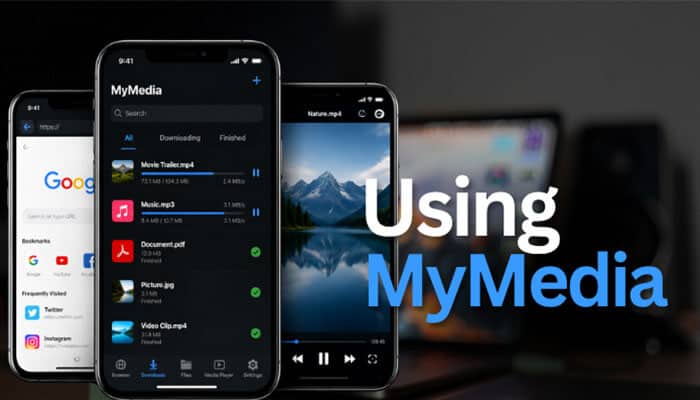
MyMedia is a dedicated download manager app available on the App Store. It works similarly to Documents by Readdle but is specifically designed around media downloading.
Download MyMedia from the App Store.
2. Open the app and use the built-in browser to visit an online converter like yt1s.com.
3. Paste your YouTube URL, convert, and download the MP4 file.
4. The file appears in MyMedia’s download library, where you can play it directly or export it to your Photos app.
Method 4: Using Shortcuts App (Advanced)
The Shortcuts app on iPhone allows you to create automated workflows. There are community-built shortcuts designed specifically to download YouTube videos. These are more advanced to set up but work directly from the YouTube share sheet.
1. Open the Shortcuts app on your iPhone (pre-installed on iOS 13 and later).
2. Search for a YouTube download shortcut in the Shortcuts Gallery or find one from a trusted source online.
3. Add the shortcut to your library.
4. When watching a video on YouTube, tap Share and then select the shortcut from the share menu.
5. The shortcut processes the download and saves the file as instructed in the workflow.
Note: The availability and reliability of specific Shortcuts varies. Some require additional configuration. Look for shortcuts with recent positive reviews, as older ones may no longer work with current YouTube.
Android: How to Convert YouTube to MP4
Android is significantly more open than iOS when it comes to file downloads and third-party app installation. This gives Android users more options, including some that are not available on iPhone at all.
Method 1: Using an Online Converter in Chrome
The most straightforward method on Android no app installation needed.
1. Open the YouTube app and find the video you want to download.
2. Tap Share below the video, then tap Copy Link.
3. Open Chrome and go to y2mate.com or yt1s.com.
4. Paste the link into the converter and tap Convert.
5. Select your preferred resolution and tap Download.
6. Chrome will download the MP4 file directly to your device’s Downloads folder.
7. Open your Files app or a file manager to find and play the downloaded video.
Method 2: Using TubeMate
TubeMate is one of the most established YouTube downloader apps for Android. It is not available on the Google Play Store (Google does not permit YouTube downloaders on Play) but can be downloaded directly from the TubeMate website as an APK file.
1. On your Android device, go to tubemate.net in your browser.
2. Download the TubeMate APK file.
3. Before installing, go to Settings > Security and enable Install from Unknown Sources (the exact path varies slightly by Android version and manufacturer).
4. Open the downloaded APK file and complete the installation.
5. Open TubeMate, search for or paste your YouTube video URL.
6. Tap the download icon and select MP4 as your format and your preferred resolution.
7. The video downloads to your device storage.
Important: Only download TubeMate from its official website. Imitation APK files from other sources can contain malware. Always verify you are on the correct site before downloading.
Method 3: Using Snaptube
Snaptube is another well-known Android app for downloading YouTube videos. Like TubeMate, it is distributed as an APK outside of the Play Store. Snaptube supports YouTube and a large number of other video platforms.
1. Visit snaptubeapp.com and download the official APK.
2. Enable installation from unknown sources in your Android security settings.
3. Install and open Snaptube.
4. Search for your YouTube video within Snaptube’s built-in browser or paste the URL.
5. Tap the download button that appears at the bottom of the video.
6. Select MP4 and your preferred resolution.
7. The file downloads and is saved to your device.
Method 4: Using VidMate
VidMate is a feature-rich downloader that supports YouTube, Instagram, Facebook, TikTok, and many other platforms. It is also distributed as an APK.
Download VidMate from vidmate.net (the official site).
2. Install the APK after enabling unknown sources in your settings.
3. Open VidMate and navigate to YouTube through the built-in browser, or paste a URL.
4. Tap the download button, select MP4 and your resolution.
5. The video saves to your chosen folder.
What sets VidMate apart: It includes a download manager that tracks all your downloads in one place, and supports batch downloading from multiple platforms in a single session.
Method 5: Using a Browser-Based Converter with the Built-In Download Manager
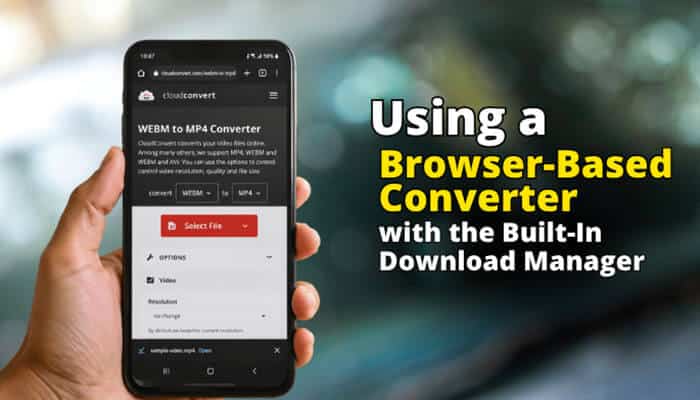
If you prefer not to install any APK files, Android’s built-in Chrome browser combined with an online converter is a clean, safe option. Follow the same steps as Method 1. Chrome on Android handles file downloads natively and saves them to your Downloads folder automatically.
Comparison: iPhone vs Android Options
| Method | iPhone | Android | App Required | Ease of Use |
| Online converter (browser) | Yes (Safari + Files) | Yes (Chrome) | No | Easy |
| Documents by Readdle | Yes | No | Yes (free) | Easy |
| MyMedia | Yes | No | Yes (free) | Easy |
| Shortcuts app | Yes (advanced) | No | No (built-in) | Advanced |
| TubeMate | No | Yes | Yes (APK) | Moderate |
| Snaptube | No | Yes | Yes (APK) | Easy |
| VidMate | No | Yes | Yes (APK) | Easy |
Tips for Better Downloads on Mobile
- Use Wi-Fi, not mobile data: MP4 files, especially at 1080p, can be several hundred megabytes. Downloading over cellular can consume your data allowance quickly and is often slower than Wi-Fi.
- Choose the right resolution: On a phone screen, the visual difference between 720p and 1080p is minimal. 720p files are significantly smaller and download faster, which matters if you are downloading multiple videos.
- Check storage before downloading: A 20-minute video at 1080p can be 300-500MB. Make sure your device has enough free storage before starting a download.
- Use a file manager app: Both iPhone and Android benefit from a dedicated file manager (Files app on iOS, Files by Google on Android) to organize and access downloaded videos easily.
- Keep apps updated: YouTube regularly updates its systems. Apps like TubeMate and Snaptube release updates in response. If downloads stop working, check for an app update before assuming the tool is broken.
Final Thoughts
How to Convert YouTube to MP4 on iPhone and Android iPhone users have the most reliable experience with Documents by Readdle combined with an online converter, or by using the native Safari download method on iOS 13 and above. Android users have more flexibility, with TubeMate and Snaptube offering the most capable dedicated download apps.
Whichever method you use, the process becomes straightforward once you have done it once. The steps are consistent across different videos, and the same tools will handle YouTube Shorts, regular videos, and most other content types equally well.
How to Convert YouTube to MP4 on iPhone and Android FAQ’s
1. Can I download YouTube videos directly through the YouTube app on iPhone or Android?
The YouTube app does not offer a free download option. YouTube Premium subscribers can download videos for offline viewing within the app, but these downloads are locked inside the YouTube app and cannot be exported as MP4 files.
2. Are APK apps like TubeMate and Snaptube safe?
The apps themselves, when downloaded from their official websites, are generally considered safe and are used by millions of people. The risk comes from unofficial download sources that distribute modified versions. Always verify you are on the official website.
3. Why is my iPhone not saving the downloaded MP4 to Photos?
MP4 files downloaded from the web save to the Files app, not Photos. To move a video to your Photos library, open it in the Files app, tap Share, and select Save Video.
4. What resolution should I choose for iPhone or Android?
720p is sufficient for most phone screens and keeps file sizes manageable. Choose 1080p if you plan to play the video on a larger screen or keep it as an archive copy.
5. Can I download YouTube Shorts to MP4 on mobile?
Yes. YouTube Shorts URLs work with most online converters. Copy the Shorts URL from the YouTube app share button and paste it into your converter of choice.