
YouTube converters stop working more often than most tools not because they are poorly built, but because youtube to MP4 not working issues often occur when YouTube regularly updates its platform in ways that break third-party downloading methods. When your converter fails, it is usually one of a small set of well-known problems, each with a clear fix.
This guide covers the eight most common reasons a YouTube to MP4 conversion fails and exactly what to do about each one.
Quick Diagnosis: What Kind of Error Are You Seeing?
| Symptom | Most Likely Cause | Go To |
| Blank result / no download button appears | Converter is broken or outdated | Fix 1 |
| “Video unavailable” error message | Restricted or removed video | Fix 2 |
| Download starts but file is corrupted | Incomplete download or codec mismatch | Fix 3, Fix 4 |
| File plays audio but shows black screen | Video-only stream issue | Fix 4 |
| Quality capped at 480p or 720p | Converter limitation | Fix 5 |
| Conversion takes forever or freezes | Server load or connection issue | Fix 6 |
| Age-restricted video won’t convert | Authentication required | Fix 7 |
| File won’t open on my device | Compatibility issue | Fix 8 |
Fix 1: The Converter Itself Is Broken Switch Tools
This is the most common cause of failure and the easiest to address. YouTube frequently updates the way it delivers video streams. When that happens, online converters that rely on specific delivery methods break sometimes for hours, sometimes for days, until the converter is updated.
The fix is straightforward: stop using the tool that is failing and switch to a different one.
If you are using an online converter, try these alternatives in order:
- com
- com
- com (add ‘ss’ before ‘youtube.com’ in the URL)
- net
- com
If multiple online tools are failing simultaneously, switch to a desktop application. Desktop tools like 4K Video Downloader and YTD Video Downloader are updated more frequently than browser-based converters and handle YouTube’s changes faster. If you do not have one installed, 4K Video Downloader is free to download and takes under two minutes to set up.
Tip: Online converters often break after YouTube updates without any visible error message they simply return no results or a blank download area. This looks like a problem with the video, but it is a problem with the tool.
Fix 2: The Video Is Restricted, Private, or Removed
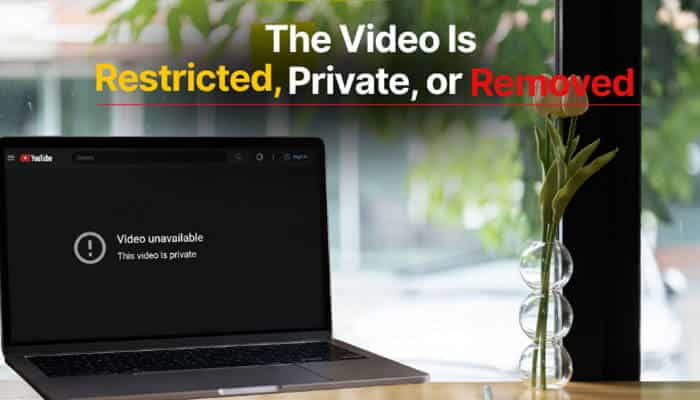
Not all YouTube videos are accessible to converters. Several types of videos will fail regardless of which tool you use:
Private videos are only accessible to users specifically granted access by the uploader. No converter can access a private video because the video stream itself is not publicly available.
Deleted or removed videos no longer exist on YouTube’s servers. If a video has been taken down whether by the uploader, by YouTube, or following a copyright claim there is nothing to download. The URL will return a ‘Video unavailable’ message.
Age-restricted videos require a logged-in YouTube account to verify age. Most online converters cannot handle this. See Fix 7 for specific options.
Region-locked videos are only available in certain countries. If the video is unavailable in your region when you try to watch it normally, converters will face the same restriction.
How to confirm: Open the YouTube video URL directly in your browser. If you see ‘Video unavailable’, ‘This video is private’, or ‘This video is not available in your country’, the video itself is the issue no converter will help.
For region-locked content, some users access the video through a VPN set to a supported region and then attempt conversion. This is a technical workaround that may or may not work depending on the tool, and carries its own considerations.
Fix 3: The Downloaded File Is Corrupted or Will Not Play
A file that downloads successfully but will not play or plays for a few seconds then stops is usually the result of an incomplete download or a file that was not properly assembled by the converter.
Step 1: Check the File Size
A corrupted download is often much smaller than expected. A 10-minute video at 720p should be at least 100 MB. If your downloaded file is only a few megabytes, the download did not complete properly.
Step 2: Try Playing It in VLC
Before assuming the file is broken, open it with VLC Media Player (free, available for all platforms). VLC is far more tolerant of imperfect or partially downloaded files than default media players. If VLC plays the file, the issue is with your default player, not the file.
Step 3: Re-download the File
If the file is genuinely corrupted or incomplete, delete it and download again. Avoid pausing or interrupting the download mid-way. If your internet connection is unstable, wait for a more reliable connection before attempting a large download.
Step 4: Try a Different Converter
Some converters produce files with improper headers or encoding that certain players reject. If re-downloading from the same tool produces the same problem, switch to a different converter and download again.
Fix 4: File Downloads But Shows a Black Screen (No Video)
This specific problem audio plays fine but the screen is black has a specific cause. At 1080p and above, YouTube delivers video and audio as separate streams. Some converters download only one of these streams (usually the audio) and produce a file that your media player recognizes as video but has no picture.
The fix depends on how you are downloading:
- If using an online converter: Switch to a resolution of 720p or lower. At 720p and below, YouTube provides a combined stream with both video and audio, which online converters handle correctly. If you specifically need 1080p, you will need a desktop tool.
- If using a desktop tool: Make sure you are selecting a format option that includes both video and audio, not a video-only or audio-only stream. In 4K Video Downloader, look for options labeled ‘MP4’ with both a resolution and an audio quality indicator. Options that show only a resolution with no audio may be video-only streams.
- If the file has video but no audio: The opposite problem this means the converter grabbed the video-only stream. The solution is the same: use a tool that properly merges the video and audio streams before delivering the file. 4K Video Downloader handles this automatically for all supported resolutions.
Fix 5: Quality Is Capped at 480p or 720p
Many online YouTube converters have a hard limit on the quality they offer. This is not a bug it is a deliberate limitation of the tool.
As explained in Fix 4, 1080p and higher require merging two separate streams. Online converters typically skip this step because it requires significant server processing power. The result is that they can only offer combined streams, which YouTube caps at 720p.
Solutions for Getting 1080p and Above
- Option 1 Use 4K Video Downloader: This desktop application handles stream merging automatically. After pasting your URL and clicking download, select 1080p MP4 and it will download and merge the streams into a single proper file. This is the most reliable solution.
- Option 2 Use YTD Video Downloader or ClipGrab: Both desktop applications also handle 1080p downloads correctly. Any desktop tool that explicitly lists 1080p in its quality options should work.
- Option 3 Use yt-dlp (advanced): yt-dlp is a free, open-source command-line tool that is the most technically capable YouTube downloader available. It handles any resolution, any format, and requires no server intermediary. It is not beginner-friendly, but if you are comfortable with a command line, it is the most reliable option by a significant margin.
Note: If you specifically need 4K, desktop tools are the only realistic option. No online converter reliably supports 4K downloads.
Fix 6: Conversion Is Extremely Slow or Freezes
Slow conversions are usually caused by one of three things: high server load on the converter’s end, a slow or unstable internet connection on your end, or a very long video that simply takes time to process.
If the Converter Is the Problem
- Try at a different time of day: Converter servers are busiest during peak evening hours in high-traffic regions
- Switch to a different online converter: If one is overloaded, another may be running normally
- Switch to a desktop tool: Desktop applications download directly from YouTube’s servers without routing through a converter’s infrastructure, so they are not affected by converter server load
If Your Connection Is the Problem
- Check your internet speed a 1080p file of several hundred MB requires a reasonable connection to download in a sensible time
- Switch from Wi-Fi to a wired connection if possible
- Pause other downloads or streaming on your network while the conversion runs
- If on mobile data, switch to Wi-Fi mobile connections are more variable
If the Video Is Very Long
A two-hour video at 1080p can be 2-4 GB. Online converters may time out or fail on very long videos. For content over 30-40 minutes, desktop tools are more reliable than browser-based converters. 4K Video Downloader handles long videos without any practical length limitation.
Fix 7: Age-Restricted Videos Will Not Convert
Age-restricted YouTube videos require users to be logged in to a YouTube account that has confirmed they are 18 or older. Online converters operate without any account login, so they cannot pass YouTube’s age verification check. The video stream is simply not accessible to them.
Working Solutions for Age-Restricted Videos
1. 4K Video Downloader (recommended): This application has a feature called ‘Smart Mode’ that can be configured with your YouTube account login for age-restricted content. In the application settings, look for the option to connect a YouTube account. Once connected, age-restricted videos become accessible.
2. yt-dlp with cookies (advanced): yt-dlp supports passing browser cookies to authenticate with YouTube. If you are logged into YouTube in your browser, yt-dlp can use those cookies to access age-restricted content. The command is: yt-dlp –cookies-from-browser chrome [URL]. Replace ‘chrome’ with ‘firefox’ or ‘edge’ as appropriate.
3. yt-dlp with username and password: yt-dlp also supports direct login with –username and –password flags, though Google’s security systems have made this less reliable than the cookie method.
Online converters (Y2mate, yt1s, etc.) cannot access age-restricted videos regardless of any workaround attempted on your end. A desktop tool with account integration is required.
Fix 8: The Downloaded File Will Not Open on Your Device
A successfully downloaded MP4 that will not play on a specific device is almost always a codec compatibility issue, not a problem with the file itself.
Fix 8a: Install VLC Media Player
VLC is free, available on Windows, macOS, Linux, iOS, and Android, and plays virtually every video format and codec combination in existence. If your file plays in VLC, it is a healthy file the issue is with your default media player, not the download. VLC should be your first troubleshooting step.
Fix 8b: Check Device-Specific Compatibility
- Smart TVs and media players: Most modern smart TVs support H.264 MP4 files from a USB drive. If your file does not play, check whether the TV supports the specific codec. Older H.265 (HEVC) encoded files may not be supported on older TVs. Re-downloading the video as H.264 MP4 usually resolves this.
- iPhone and iPad: iOS natively supports H.264 and H.265 MP4 files. If a file will not play, it may have been encoded in an unsupported codec, or the container may not be a true MP4. Try opening with VLC for iOS, which is free from the App Store.
- Older Windows PCs: Windows 7 and some Windows 8 installations lack built-in H.264 playback support. Install VLC or the K-Lite Codec Pack to resolve this.
Fix 8c: Convert the File to a Compatible Format
If a specific device requires a specific format or codec and your downloaded file does not match, convert the file using one of these free tools:
- HandBrake (Windows, macOS, Linux): Free, powerful, converts to H.264 MP4 reliably
- VLC Media Player: Has a built-in Convert / Save feature under the Media menu
- FFmpeg (command line, advanced): The most capable free conversion tool available
Bonus: How to Avoid These Problems in the First Place
| Problem | Prevention |
| Converter stops working | Use 4K Video Downloader as your primary tool it updates frequently |
| Corrupted downloads | Do not interrupt downloads; check file size before assuming success |
| Black screen (no video) | Use a desktop tool for 1080p; use 720p on online converters |
| Quality capped at 720p | Use 4K Video Downloader or any desktop tool for higher resolutions |
| Slow conversions | Use desktop tools for long videos; avoid peak server hours for online tools |
| Age-restricted failures | Set up 4K Video Downloader with your YouTube account in advance |
| Playback incompatibility | Install VLC on every device it eliminates most playback issues instantly |
When Nothing Works: The Nuclear Option
If every method is failing for a specific video, here is a last-resort checklist:
1. Confirm the video is publicly accessible open it in an incognito browser window and verify it plays normally
2. Try yt-dlp from the command line it is the most technically current and reliable downloader available, updated more frequently than any GUI tool
3. Check if the video is from a channel with download restrictions enabled some creators use YouTube’s DRM features, which prevent all third-party downloading tools
4. Wait 24 hours and try again if YouTube pushed a major update, most tools will be patched within a day or two
5. Try from a different network some ISPs throttle or block traffic to known converter services
Summary
For everything else, VLC Media Player is the universal fallback for playback issues, and yt-dlp is the last-resort solution for anything a standard GUI tool cannot handle.
YouTube to MP4 Not Working FAQ’s
1. Why did a converter work yesterday but not today?
YouTube pushes updates regularly. A converter that worked yesterday may have broken overnight as YouTube changed how it serves video streams. This is normal. Switch tools or wait for the converter to update.
2. Is there a converter that never breaks?
No online converter is immune to YouTube updates. Desktop tools with active development (4K Video Downloader, yt-dlp) recover faster than others because they release updates quickly. yt-dlp is updated most frequently of all.
3. Why does my file have no sound?
You downloaded a video-only stream. This happens most often with 1080p and above on online converters. Use a desktop tool that merges video and audio streams, or select 720p on an online converter.
4. The converter says ‘done’ but no file appears where did it go?
Check your browser’s default download folder. On Windows this is typically the Downloads folder. On Mac it is also Downloads. On mobile, check the Files app (iPhone) or the Downloads folder in your file manager (Android). Some converters show a ‘done’ message before the browser’s download prompt appears wait a few seconds for the prompt.
5. Can I download a YouTube video that has been blocked in my country?
If a video is geo-restricted, you will need to be accessing YouTube from a region where the video is available. Some users accomplish this with a VPN. The converter tool itself is not the limiting factor it is YouTube’s delivery of the stream based on your apparent location.